
Redirects in cPanel can be a handy tool for managing your website’s traffic and ensuring that visitors are directed to the correct pages or domains. Whether you’re consolidating multiple domains, updating URLs, or directing traffic from old pages to new ones, cPanel provides a straightforward interface for setting up redirects. In this comprehensive guide, we’ll walk you through the process of creating site/domain redirects in cPanel, step by step.
Understanding Redirects:
What are Redirects?
Redirects are instructions that automatically send users from one URL to another. They are commonly used when a page or domain has been moved or renamed, ensuring that visitors are seamlessly redirected to the correct destination.
Types of Redirects:
- 301 Redirect (Permanent): Informs search engines that the redirect is permanent and passes on link equity.
- 302 Redirect (Temporary): Indicates a temporary redirect, useful for short-term changes or testing purposes.
- Meta Refresh: A less common method that redirects users after a specified time delay, often used for non-HTML pages.
Steps to Create a Site/Domain Redirect in cPanel:
Step 1: Log in to cPanel:
- Open your web browser and navigate to your cPanel login page (typically located at yourdomain.com/cpanel).
- Enter your cPanel username and password to log in.
Step 2: Access the Redirects Interface:
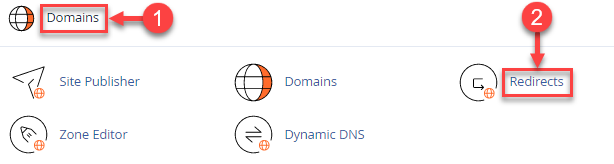
- Once logged in, scroll down to the “Domains” section and click on the “Redirects” icon. This will open the Redirects interface.
Step 3: Choose the Type of Redirect:
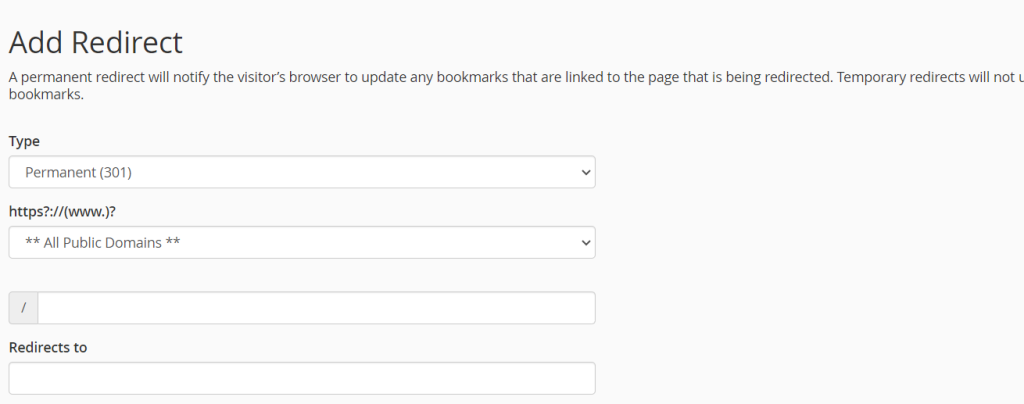
- In the Redirects interface, you’ll see options to choose the type of redirect you want to create: “Permanent (301)” or “Temporary (302).” Select the appropriate option based on your needs.
Step 4: Select the Domain:
- Next, choose the domain from the drop-down menu for which you want to create the redirect. You can select the main domain or any addon or subdomain associated with your cPanel account.
Step 5: Enter the Redirect Path:
- In the “Redirects to” field, enter the destination URL to which you want the traffic to be redirected. This can be a relative path or a full URL, depending on your requirements.
- For example, if you’re redirecting from “example.com/old-page” to “example.com/new-page,” you would enter “/new-page” in the “Redirects to” field.
Step 6: Choose Redirect Type and Settings:
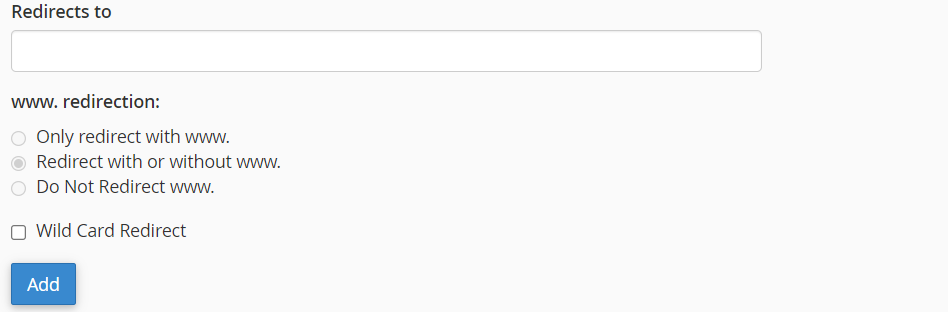
- In the “Redirects Settings” section, choose the appropriate settings for your redirect:
- www. Redirects: Decide whether you want to redirect both www and non-www versions of your domain.
- Wildcard Redirects: Enable wildcard redirects if you want all subdirectories to be redirected as well.
- Redirect with or without www: Choose whether you want to include or exclude the “www” prefix in the redirected URL.
Step 7: Add the Redirect:
- Once you’ve configured the redirect settings, click on the “Add” button to create the redirect. You’ll see a confirmation message indicating that the redirect has been successfully added.
Best Practices and Considerations:
Test Your Redirects:
Before making your redirects live, it’s essential to test them thoroughly to ensure they’re functioning as expected. Use different browsers and devices to test the redirects and verify that they’re redirecting users correctly.
Monitor Redirects:
Regularly monitor your redirects to ensure they remain up-to-date and relevant. If you make changes to your website structure or URLs, update your redirects accordingly to avoid broken links or incorrect redirections.
Choose the Right Redirect Type:
Select the appropriate redirect type based on the nature of the change. Use permanent (301) redirects for permanent changes and temporary (302) redirects for temporary adjustments or testing purposes.
Consider SEO Implications:
Redirects can have implications for search engine optimization (SEO), particularly permanent (301) redirects. Ensure that your redirects are implemented correctly to preserve link equity and avoid negative impacts on your website’s search rankings.
Conclusion:
Creating site/domain redirects in cPanel is a straightforward process that can be done quickly and easily using the Redirects interface. Whether you’re redirecting traffic from old pages to new ones, consolidating multiple domains, or managing URL changes, cPanel provides the tools you need to set up redirects effectively. By following the steps outlined in this guide and considering best practices, you can ensure seamless navigation for your website visitors and maintain the integrity of your website’s URL structure.