

Installing WordPress using Softaculous is a straightforward process that simplifies the setup of your WordPress website. Softaculous is a popular auto-installer tool available in many web hosting control panels, including cPanel and DirectAdmin.
In this comprehensive guide, we’ll walk you through the step-by-step process of installing WordPress using Softaculous, covering everything from accessing Softaculous in your hosting control panel to configuring WordPress settings after installation.Step 1: Access Softaculous in Your Hosting Control Panel
Log in to your hosting control panel, such as cPanel or DirectAdmin, using your username and password.Locate the Softaculous Apps Installer icon or link within your control panel. It’s usually located under the “Software” or “Web Applications” section.Click on the Softaculous icon/link to access the Softaculous auto-installer interface.

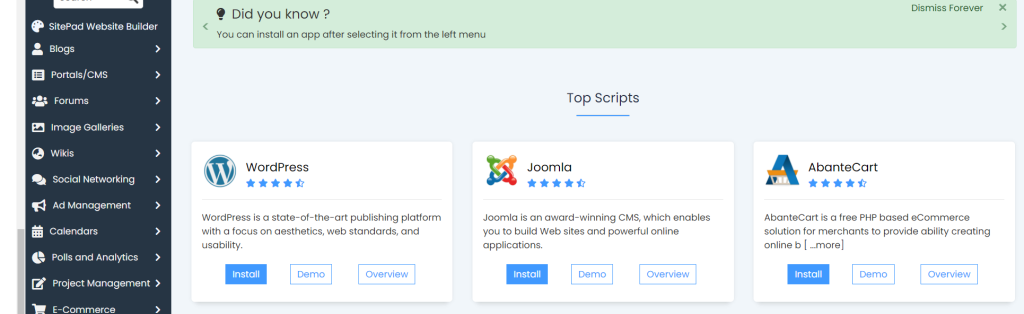
Step 2: Find and Select WordPress
In the Softaculous interface, you’ll see a list of available applications categorized by type (e.g., Blogs, CMS, E-commerce).Use the search bar or navigate through the categories to find WordPress.Once you’ve located WordPress, click on the WordPress icon to proceed with the installation.
After selecting WordPress, you’ll be directed to the WordPress installation page within Softaculous.Click on the “Install” tab to begin the installation process.
Step 4: Configure WordPress Settings
Step 4: Configure WordPress Settings
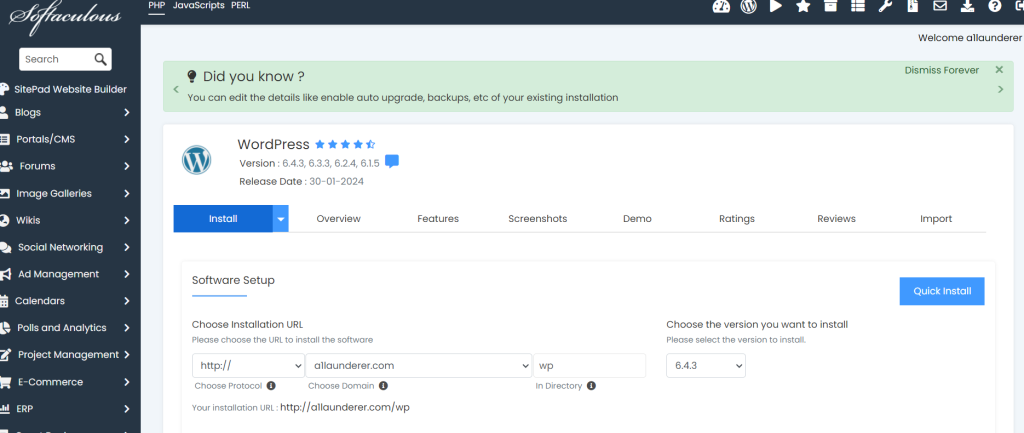
- Choose Protocol: Select the protocol you want to use for your website (HTTP, HTTPS, or HTTPS://www).
- Choose Domain: Select the domain on which you want to install WordPress. If you have multiple domains associated with your hosting account, choose the appropriate one from the dropdown menu.
- In Directory: If you want to install WordPress in a specific directory (e.g., example.com/blog), enter the directory name. Leave this field blank if you want to install WordPress in the root directory of your domain.
- Site Settings: Enter your website name and a brief description.
- Admin Account: Create a username and password for your WordPress admin account. This will be used to log in to your WordPress dashboard.
- Choose Language: Select the language for your WordPress installation.
- Select Plugins: Choose any plugins you want to install with WordPress. You can skip this step if you prefer to install plugins manually later.
- Advanced Options: Expand the advanced options section to configure additional settings such as database name, table prefix, and automatic backups.
Step 5: Complete the Installation
-
Review the installation settings to ensure everything is correct.Click on the “Install” button to initiate the WordPress installation process.Wait for Softaculous to complete the installation. You’ll see a progress bar indicating the status of the installation.Once the installation is complete, Softaculous will provide you with a link to your new WordPress website and the login URL for the WordPress admin dashboard.
Step 6: Access Your WordPress Dashboard
-
Click on the provided link to access your WordPress website.Log in to your WordPress admin dashboard using the username and password you created during the installation process.
Step 7: Customize Your Website
-
Explore the WordPress dashboard to familiarize yourself with its features and settings.Install a WordPress theme to customize the appearance of your website.Install essential plugins for added functionality, such as SEO optimization, security, and contact forms.Create and publish your first post or page to start building your website’s content.
Conclusion:
Installing WordPress using Softaculous is a simple and efficient way to set up your WordPress website. By following the step-by-step instructions outlined in this guide, you can quickly install WordPress and start building your website without the need for manual installation or technical expertise. Softaculous automates the installation process, allowing you to focus on creating and managing your website’s content. If you encounter any issues during the installation process, don’t hesitate to reach out to your hosting provider’s support team for assistance.